
Using BCTC’s Slack
Slack is the place where Bull City Track Club goes for conversations and communication in-the-moment. This brief guide hopes to help you get started using Slack and to help you get the most out of your Club experience.
Note that this guide focuses on using the Slack app on a mobile device. You can also use Slack in a browser or download the Slack app to your desktop or laptop computer.
Get the app and sign in
Before you hit the pavement, get the tech sorted:
- Download: Grab “Slack” from the Apple App Store or Google Play Store.
- Sign In: Open the app and tap Sign In. Use the email address you used to register for the club (and where you received your club invite).
- Find Your Workspace: You’ll be prompted to join the Bull City Track Club Workspace.
If you have an issue, try using bullcitytrackclub.slack.com as the workspace.
Once you are in the Club’s workspace, make sure you see the club logo near the top:

Navigating our club channels
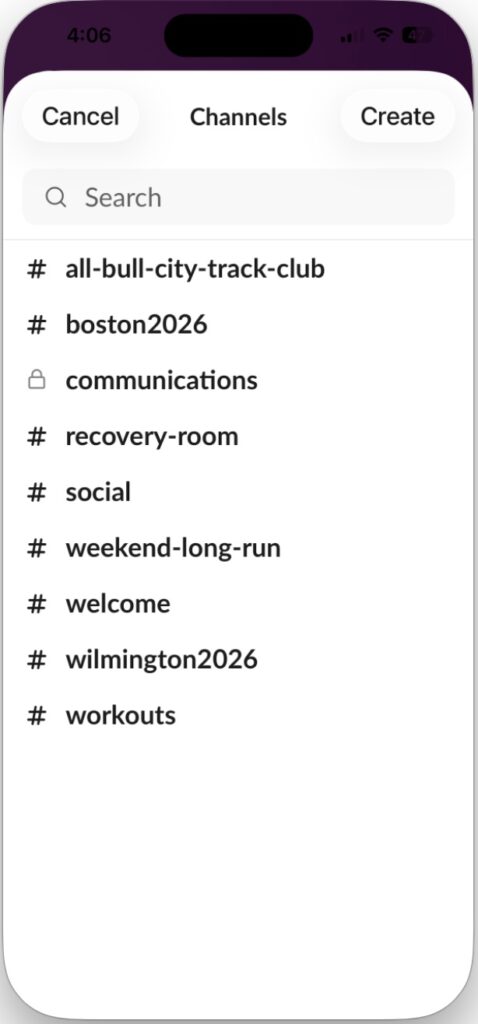
Channels are where the magic happens. Think of them as “rooms” for specific topics. Here are the ones the club has (and you’ll see topical ones spring up in the moment as well):
|
Channel name |
Description |
|---|---|
|
#all-bull-city-track-club |
This is the general, all-purpose channel. Notices about Team Info and Member News are posted here with links to the Club website. |
|
#recover-room |
Whether injured, sick, or otherwise taken out, not running is hard. This is a place to commiserate — and ask questions about treatments, therapy, and other fixes. |
|
#social |
This one’s for fun |
|
#weekend-long-run |
Your teammates post info and suggestions for weekend runs. Find some souls to share that long run. |
|
#welcome |
This is a place for new members to introduce themselves and be welcomed to the Club. |
|
#workouts |
Information about Club workouts is posted to this channel. Details are found on the Club website. |
You’ll notice that all channels start with a hashtag (#). Other Club channels are created for a specific event — like #wilmington2026, for example.
Using the app
When you open the Slack app on a mobile device, you can access the channels you’ve joined, open your direct messages, and view activity that might need your attention. You’ll see these tabs at the bottom of your screen:

Home is where you’ll access your conversations, including channels. Choose the conversations you’re a part of by joining and leaving channels.
|
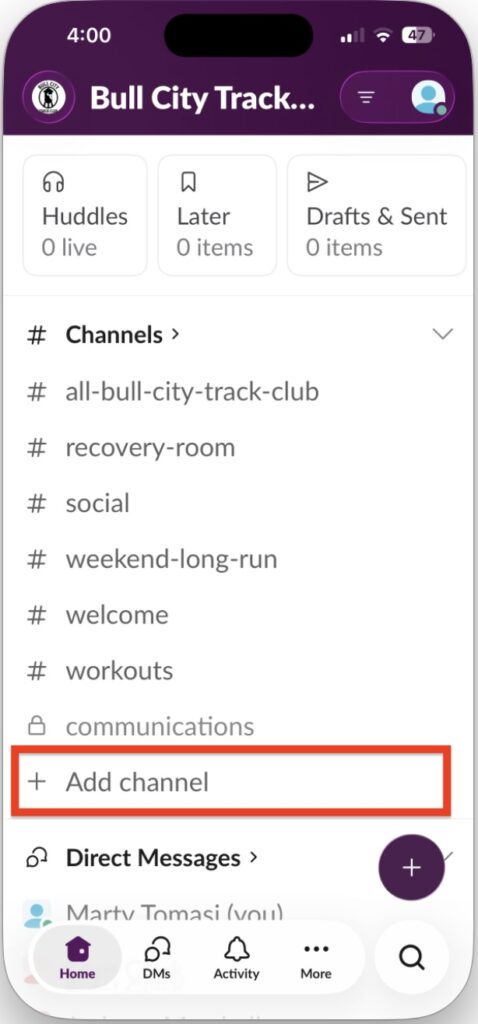
To join a channel: |
 |
|
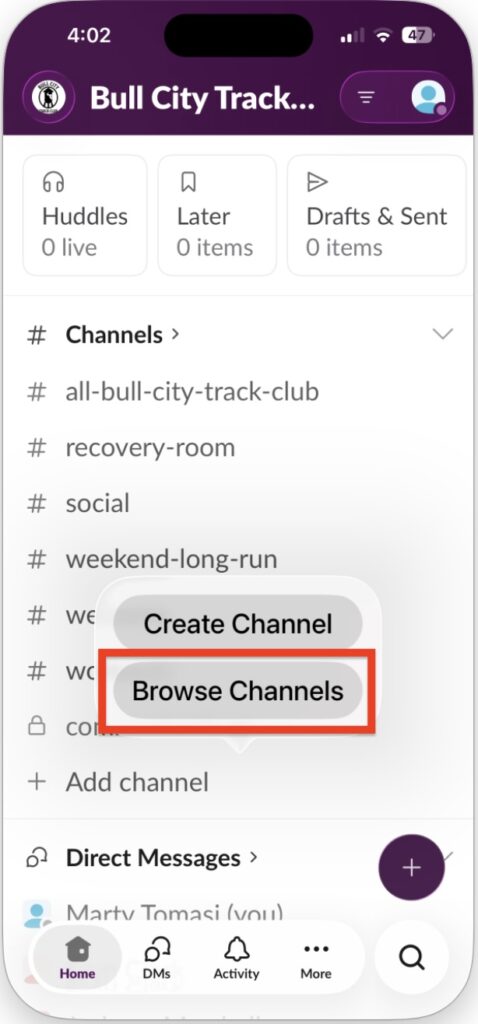
Click Browse to view the club’s channels (see the list of channels above). |
 |
|
Select the channel you want from the list. |
 |
|
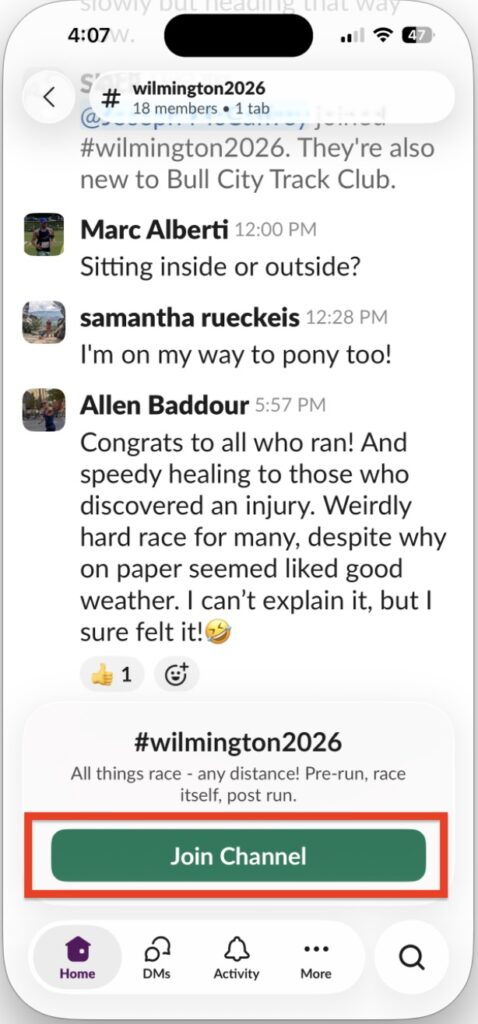
Click Join Channel. You can only post and reply to threads in channels that you have joined. |
 |
DMs is a list of all your direct messages with your teammates. Use DMs for one-off conversations that don’t require an entire channel of people to weigh in – or to communicate directly with a club member.
Activity is a single view of everything that might need your attention. See messages you’ve been mentioned in, threads you are part of, and reactions to messages you’ve sent.
Sending messages
In Slack, conversations happen in channels and direct messages (DMs). You can send messages in real time, or schedule them to send later. If you start writing a message and don’t send it, it’ll automatically save as a draft.
To send a message:
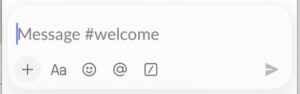
- Open the channel, DM, or thread you’d like to send a message to.
- Tap the message field.
- Type your message and add any attachments, emoji, mentions, or formatting you’d like.
- Tap the paper plane icon to send your message, or tap and hold the icon to schedule it for later.
To reply to a message (which means starting a thread):
- Tap the message you want to reply to.
- Tap Reply in Thread, or tap the Add a reply field to add to an existing thread.
- Type your reply.
- If you’d like to send your reply back to the channel or DM’s main view, check the box below your message.
- Tap the paper plane icon to send your message.
Reading messages
A bold channel or DM in the Home tab means there are unread messages in the conversation. Tap the conversation name to view the unread messages.
To mark a message as read, swipe right. To mark it as unread so you can come back to it later, swipe left.
Set up notifications
Depending on your personal preference, you may or may not want your phone to buzz every time a message gets posted to Slack. To set your preferences:
- Swipe right to see the Workspaces page.
- Click Preferences, then select Notifications.
- Set whatever makes sense to you, but be sure to check the Exceptions to the defaults so that you can set alerts on specific channels, if desired.
- For example, you may set it to Mentions & Direct Messages if you only want to know when someone contacts you specifically.
Basic Etiquette
Some basic tips for using Slack:
- Use Threads: If someone asks a question about a specific run, reply in a thread (long-press the message and tap “Reply in thread”) to keep the main channel clean. Threads keep messages organized and assures that replies are grouped and not lost within other chatter.
- Reactions: Instead of typing “Got it!” or “Cool!”, use an emoji reaction like ✅ or 🔥.
- Tagging: Use
@hereor@channelsparingly—only for truly urgent club news.